How to Use Cursor AI for Coding (2026 Guide)
Download Cursor at cursor.com, open your project folder, and you’re already most of the way there. Use Tab to accept AI autocomplete, Cmd+K to rewrite selected code in plain English, and Cmd+L to chat with your entire codebase. The free Hobby plan gets you up and running in under five minutes — no credit card required.
You’ve got a deadline in two hours and you’re staring at a blank file. You know what you need to build, but getting from idea to working code still feels like a grind — Googling syntax, re-reading docs, hunting down that one Stack Overflow answer you saw last week. [The one with the accepted answer from 2012 that sort of works if you squint at it.]
Cursor AI is an AI-first code editor built on top of VS Code that puts intelligent autocomplete, codebase-wide chat, and multi-file edits directly inside your editor. No tab-switching. No copy-pasting from a separate chat window. The time you spend bridging between your editor and an AI assistant is mostly dead time — learning how to use Cursor AI for coding cuts most of it.
This guide covers setup, every core feature worth knowing, and the tips that actually change how fast you ship. It’s thorough — the fact that you’ve read this far suggests you’re serious about this, or your CI pipeline is taking a while. Either works.
Related: Windsurf AI vs Cursor: Full Comparison
What Is Cursor AI and Why Developers Love It
Cursor AI is an AI-first code editor developed by Anysphere. At its core it is a fork of Visual Studio Code, which means your existing extensions, themes, and keybindings all carry over the moment you install it. What sets it apart is a deeply integrated AI layer that understands your project at the file-system level — not just the single line you happen to be typing on.
Five things make it worth switching from a standard VS Code setup:
- Codebase-aware chat — ask questions about your own repo and get accurate, file-linked answers.
- Tab autocomplete — intelligent multi-line predictions that go far beyond IntelliSense.
- Cmd+K inline edits — highlight code, describe what you want changed, watch it rewrite in place.
- Agent mode — let Cursor plan and execute multi-step tasks across multiple files simultaneously.
- Terminal integration — run and debug commands without leaving the editor.
Because Cursor shares VS Code’s DNA, the learning curve for the Cursor AI IDE is almost zero for developers already on VS Code. You get everything familiar plus a deeply integrated AI layer on top — including all those extensions you installed, promised you’d explore, and quietly never opened. They’re all still there. No judgement.
↑ Back to topHow to Set Up Cursor AI (Step by Step)
Getting started takes less than five minutes. Here is the complete Cursor AI setup step by step:
- Download Cursor. Visit cursor.com and download the installer for your operating system (macOS, Windows, or Linux). The installer is free and requires no credit card.
- Install it like any desktop app. Run the installer. If you are migrating from VS Code, Cursor will offer to import your settings, extensions, and keybindings automatically — accept this to have a familiar environment from the very first launch.
- Sign up or log in. Create a free account. The Hobby tier gives you 2,000 completions and 50 slow premium model requests per month at no cost.
- Open your project. Use
File → Open Folderto load your codebase. Cursor indexes your files in the background so the AI has full context about your repo structure. - Choose your AI model. Go to
Cursor Settings → Modelsand pick your preferred model. Claude 3.5 Sonnet, GPT-4o, and Gemini are all available. Claude excels at reasoning through complex refactors; GPT-4o is fast for quick autocomplete tasks. - Run a quick test. Open any file, type a plain-English comment like
// fetch user data from the API and handle errors, then pressTab. Cursor should autocomplete the entire function body.
That is it — you are up and running with the Cursor AI IDE in under five minutes.

Photo by Jakub Zerdzicki on Pexels
How to Use Cursor AI for Coding (Core Features)
These are the features you’ll actually use — in order of how much they change your day.
Tab Autocomplete
Start typing and Cursor predicts what comes next — sometimes a single line, sometimes an entire function. Press Tab to accept the suggestion or keep typing to ignore it. Unlike basic IntelliSense, these completions are context-aware: Cursor reads your surrounding functions, your imports, and even related files elsewhere in the project.
Pro tip: Write a plain-English comment first (// validate email format and throw if invalid), then press Tab. Cursor will generate a complete implementation that matches your project’s existing style.
The first time it completes an entire function body from a single comment, you’ll press Tab and then sit there for a moment to confirm it actually happened. That reaction is completely normal. [Not a sponsored statement. Just what happened.]
Chat with Your Codebase (Cmd/Ctrl+L)
Press Cmd+L (Mac) or Ctrl+L (Windows/Linux) to open the chat sidebar. Ask anything about your project:
- “Where is user authentication handled in this repo?”
- “What does the
processOrderfunction do step by step?” - “Show me every place we make an outbound API call.”
Cursor searches your indexed codebase and replies with accurate, file-linked answers. This single Cursor AI feature replaces hours of grep sessions and Ctrl+Click navigation in large repos.
Cmd+K Inline Edits
Highlight any block of code, press Cmd+K, and type a brief instruction:
- “Convert this to async/await”
- “Add null-checking for every parameter”
- “Refactor this into smaller helper functions”
Cursor rewrites the selection in place and shows you a diff. Accept with Tab or reject with Esc. One keystroke, zero copy-pasting.
Agent Mode — Multi-File Edits
For larger tasks, open the chat panel, switch to Agent mode, and describe your goal at a high level:
“Add a rate-limiting middleware to the Express app and wire it up in server.js.”
Cursor will plan the steps, create or modify the necessary files, and show you each change for approval before applying it. This is the most powerful Cursor AI feature for shipping real features fast without losing control of what changes.

Photo by Daniil Komov on Pexels
Cursor AI Tips and Tricks for Faster Development
Once you’re past the basics, these are the five adjustments that actually change how fast you ship:
1. Use .cursorrules for persistent project context.
Drop a .cursorrules file in your repo root with project-specific instructions — “Always use TypeScript strict mode,” “Prefer functional components over class components,” or “Follow the existing error-handling pattern in lib/errors.ts.” Cursor injects this into every prompt automatically. On a recent Next.js project, the rules took 20 minutes to write. In the first week, about 80% of suggestions were usable without manual correction — compared to roughly half before the file existed. The time investment pays back within days. Fair warning: once you’ve set up your first .cursorrules file, you’ll want one for every project you’ve ever touched. That’s a known side effect of finding something that actually works.
2. Reference specific files with @filename.
Type @filename.ts in the chat to attach a file as context without it being open. Use @web to pull in real-time information from the internet — useful for checking a library’s latest API.
3. Use @Codebase for repo-wide searches.
Prefacing a chat message with @Codebase tells Cursor to search the entire indexed project rather than just the currently open files.
4. Multi-cursor + Cmd+K for batch transformations.
Select multiple similar lines with multi-cursor, press Cmd+K, and apply the same transformation to all of them at once.
5. Key shortcuts worth memorising:
Tab— accept autocomplete suggestionCmd+L— open codebase chatCmd+K— inline edit selected codeCmd+Shift+L— add current selection to chat contextEsc— reject AI suggestion
These five adjustments compound. The biggest single one is the .cursorrules file — most developers who use Cursor daily set one up and never look back. For a deeper reference, the official Cursor documentation is well-maintained and worth bookmarking.
Cursor AI vs Other AI Coding Tools
Most comparisons between AI coding tools focus on autocomplete speed. That’s the wrong thing to measure. The real differentiator is codebase-aware context — how well the tool understands your project, not just the line you’re currently typing. That’s where Cursor earns its position. Here’s how the main options stack up:
| Tool | Strengths | Weaknesses |
|---|---|---|
| Cursor AI | Codebase-wide context, Agent mode, multi-model support, Cmd+K inline edits | Subscription cost; some advanced features require Pro plan |
| GitHub Copilot | Deep GitHub integration, available across many IDEs, enterprise compliance | Weaker codebase chat; no native Agent mode for multi-file tasks |
| Windsurf (by Codeium) | Generous free tier, fast completions, growing ecosystem | Fewer advanced agent features; smaller community than Cursor |
| Cline (VS Code extension) | Open-source, bring-your-own API key, full transparency | Manual setup required; no built-in codebase indexing |
When to choose Cursor: You want the most capable AI-first IDE experience with multi-file editing, strong codebase search, and the flexibility to switch between frontier models.
When to choose Copilot: Your team is deeply embedded in GitHub or already holds enterprise Copilot seats.
When to choose Windsurf or Cline: Budget is a hard constraint and you are comfortable with some manual configuration.
One honest note before you pick: if you write 50 lines of Python a month, none of these tools are worth the subscription cost. The free tiers exist for a reason — use them first and see if you actually reach their limits. According to Stack Overflow’s Developer Survey, AI coding tools are now a core part of the workflow for the majority of professional developers. For anyone shipping code regularly, the question is which tool — not whether.
↑ Back to topIs Cursor AI Free? Pricing and Plans Explained
Yes — Cursor AI has a free plan, and it is genuinely useful for individual developers who want to evaluate it before committing.
| Plan | Price | What You Get |
|---|---|---|
| Hobby (Free) | $0/month | 2,000 completions/month, 50 slow premium requests, all core features |
| Pro | $20/month | Unlimited completions, 500 fast premium requests/month, access to all frontier models |
| Business | $40/user/month | Everything in Pro + SSO (SAML/OIDC), admin dashboard, zero-data-retention policy |
The zero-data-retention policy on the Business plan is worth highlighting: your code is never stored or used to train the underlying models — a key requirement for teams working with proprietary or regulated codebases.
If you’re using Agent mode regularly — scaffolding, migrations, multi-file refactors — the Pro plan at $20/month pays for itself on the first task you don’t have to do by hand. If you’re not hitting the Hobby limits, stay on the free tier until you do.
↑ Back to topFrequently Asked Questions
Is Cursor AI free to use?
Yes. Cursor offers a Hobby plan at no cost that includes 2,000 completions and 50 slow premium requests per month. All core features — autocomplete, chat, and Cmd+K inline edits — are available on the free tier. Paid plans (Pro at $20/month, Business at $40/user/month) give you unlimited completions and faster access to frontier models.
Is Cursor AI based on VS Code?
Yes. Cursor is built as a fork of Visual Studio Code, so all of your existing extensions, themes, and keyboard shortcuts work out of the box. When you first install Cursor it offers to import your VS Code configuration automatically, making the switch painless for teams already on VS Code.
Does Cursor AI send my code to external servers?
By default, Cursor transmits relevant code snippets to its AI models to generate completions and answers. You can review and adjust privacy settings under Cursor Settings → Privacy. The Business plan includes a zero-data-retention policy, which means your code is never stored or used for model training — essential for proprietary or compliance-sensitive codebases.
Can Cursor AI edit multiple files at once?
Yes — multi-file editing via Agent mode is one of Cursor’s standout capabilities. Give the Agent a high-level instruction such as “add a logging middleware and wire it up across all route files” and it plans the steps, makes the edits, and shows you a diff for each file before applying any change.
Which AI models does Cursor AI support?
Cursor supports multiple frontier models including Anthropic’s Claude 3.5 Sonnet, OpenAI’s GPT-4o, and Google’s Gemini. You can switch between them at any time in Cursor Settings → Models. Pro plan users get faster rate limits and priority access during peak hours.
Does Cursor AI work offline?
No. All of Cursor’s AI features rely on cloud API calls, so an active internet connection is required. There is no offline or air-gapped mode on standard plans. If your team has strict data-residency requirements, the Business plan allows custom arrangements with Anysphere directly.
Conclusion
Cursor is worth the setup time. The free Hobby tier — 2,000 completions and 50 premium requests per month — is enough to evaluate it properly on a real project. If you hit those limits regularly, the Pro plan at $20/month pays for itself the first time Agent mode handles a multi-file refactor you’d otherwise have done by hand.
What to take away from this guide:
- Setup takes under five minutes and your VS Code config carries over automatically.
- Codebase chat replaces most grep sessions — ask where logic lives instead of hunting through files.
- Agent mode handles multi-file tasks — scaffolding, refactors, migrations — without losing you control of what changed.
- Set up a
.cursorrulesfile immediately. Don’t wait a month to do this part.
Download Cursor at cursor.com and open your next project in it. You’ll know within a day whether it’s going to stick.
One caveat worth being honest about: Cursor will occasionally suggest code that is confidently, completely wrong. So does Stack Overflow. The difference is that with Cursor you can ask a follow-up question without getting downvoted by someone who’s been online since 2008.
Related: Windsurf AI vs Cursor : Full Comparison | How to use Cursor AI for Coding.
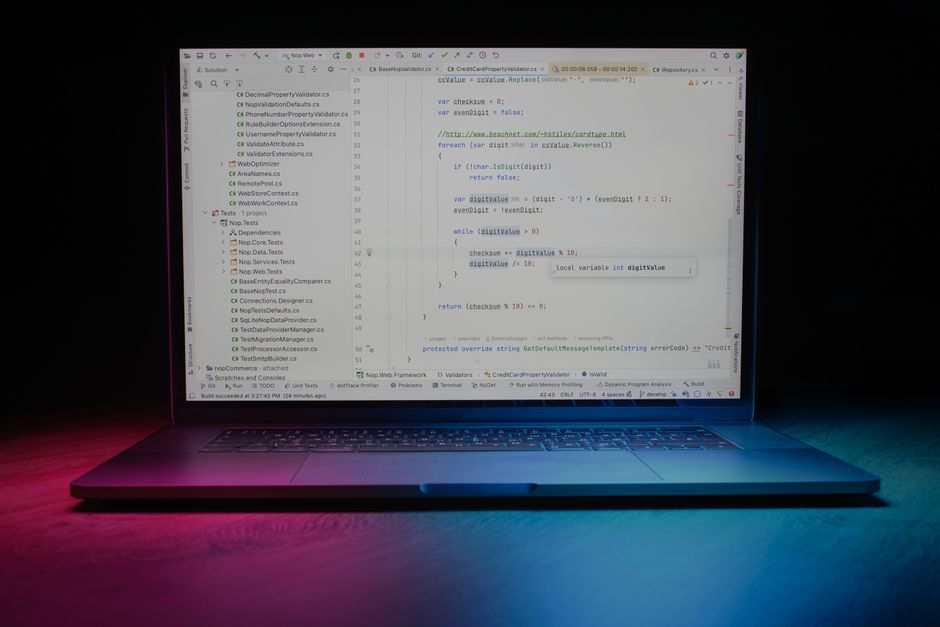
Photo by Daniil Komov on Pexels