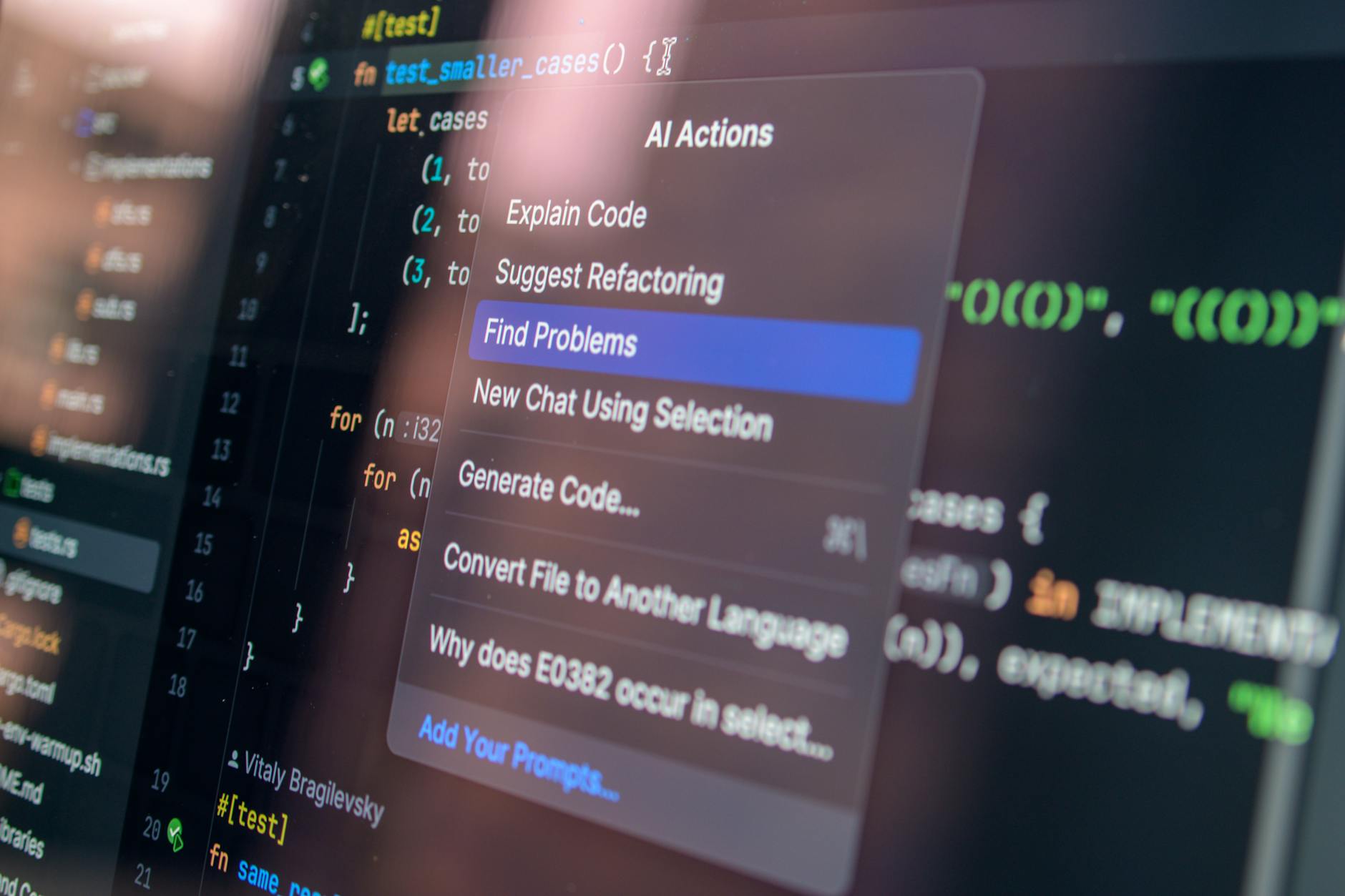
Photo by Daniil Komov on Pexels
Cursor AI vs GitHub Copilot: Which Is Right for You?
Cursor AI and GitHub Copilot both do tab autocomplete well. Cursor wins when you need a tool that understands your entire codebase — file structure, conventions, existing patterns. Copilot wins when you want AI assistance inside your existing editor without switching to a new one. They are not the same product with different logos.
I set up a .cursorrules file on a Next.js project — about 20 minutes of work. The rules were specific: always use the App Router, prefer server components, follow the error-handling pattern in lib/errors.ts. Before that file existed, the Cursor AI vs GitHub Copilot question looked roughly like a coin flip. Both suggested similar things. Both got similar numbers of completions right. After the rules file: Cursor’s suggestions started reflecting the actual project — the existing patterns, the established conventions. Copilot kept suggesting code that would compile anywhere but fit nowhere in particular.
That’s the comparison in miniature. Both tools autocomplete code. One of them can learn your specific project. That difference matters a lot depending on what you’re building and how large your codebase is.
The comparison also involves price — Copilot wins there — and editor support, where Copilot wins again. Cursor wins on codebase-aware context by a meaningful margin on complex projects. This post covers each of those dimensions so you can make the call for your actual situation, not a generic one.
What Cursor AI and GitHub Copilot Actually Do
Both Cursor AI and GitHub Copilot sit on top of large language models and generate code suggestions as you type. Both offer tab-to-accept autocomplete. Both can take a natural language instruction and turn it into code. The surface-level experience is similar enough that switching between them doesn’t require a week of adjustment.
The differences are in how they handle context and where you can run them.
| Feature | Cursor AI | GitHub Copilot |
|---|---|---|
| Editor | Standalone VS Code fork | Plugin for VS Code, JetBrains, Neovim, and others |
| Context source | Entire codebase indexed locally | Open files + surrounding code |
| Chat interface | Built-in (Composer, Agent mode) | Copilot Chat sidebar |
| Custom instructions | .cursorrules file |
Copilot instructions file |
| Models supported | GPT-4o, Claude 3.5 Sonnet, Gemini | GPT-4o, Claude 3.5 Sonnet |
| Agent / multi-file mode | Yes — full Agent mode | Yes — Copilot Workspace (limited on free tier) |
| GitHub integration | None native | PR summaries, code review, security scanning |
If you’ve used GitHub Copilot before, Cursor will feel familiar within about an hour. The editor is a fork of VS Code, supports VS Code extensions, and uses the same keyboard shortcuts. The main adjustment is that chat and agent interfaces are more central to how Cursor expects you to work — they’re not a sidebar you open occasionally.
Codebase Context: Where the Real Gap Opens
GitHub Copilot generates suggestions based on the files you have open and the code around your cursor. It’s good at this. If you’re in a TypeScript file with a clear type signature and the relevant imports visible, Copilot usually completes the function body correctly.
Cursor indexes your entire codebase in the background and uses that index when generating suggestions and chat responses. When you ask Cursor why a specific component isn’t rendering, it can look at your actual component tree, find the relevant file, and give you an answer specific to your project. Copilot can only work with what you’ve opened.
This distinction shows up most clearly on larger codebases. In a 12-file project, both tools perform similarly. In a 150-file project with shared utilities, custom hooks, and project-specific conventions — Cursor’s codebase indexing pulls ahead by a measurable margin.
The .cursorrules file amplifies this further. You define project-specific rules — which patterns to follow, which to avoid, which files handle which concerns — and Cursor applies them to every suggestion. Without one, the codebase context helps but the suggestions still drift generic. With a well-written rules file, about 80% of suggestions are usable without convention corrections. The remaining 20% are wrong for other reasons. (Both tools get things wrong sometimes. The question is whether they’re wrong in ways specific to your project or wrong in generic ways that any reviewer would catch.)

Pricing — What You Actually Pay
This is where GitHub Copilot has a clear and straightforward advantage. At every tier, Copilot costs less.
| Plan | Cursor AI | GitHub Copilot |
|---|---|---|
| Free | 2,000 completions/month, 50 slow premium requests | 2,000 completions/month, 50 chat messages |
| Pro / Individual | $20/month — unlimited completions, 500 fast premium requests | $10/month — unlimited completions and chat |
| Business / Team | $40/user/month — SSO, admin dashboard, zero-data-retention | $19/user/month — org management, audit logs |
| Enterprise | — | $39/user/month — fine-tuned models, knowledge bases |
Copilot Pro at $10/month is hard to argue against if the tool meets your needs. The $10 difference versus Cursor Pro is $120 a year — not a rounding error on an individual developer’s budget.
The business tier gap is larger: $40/user versus $19/user. For a five-person team, that’s $105/month more for Cursor. It’s worth it if the codebase-indexing advantage directly improves output. It isn’t worth it if your team’s work doesn’t benefit from project-wide context.
Where Cursor Wins
Cursor has three specific advantages that Copilot doesn’t match at comparable price points.
Codebase-wide chat. You can highlight a function and ask “where else is this pattern used?” Cursor searches the indexed codebase and returns results from files you haven’t opened. Copilot answers based on what’s visible in the editor. On a large project, this is the difference between a tool that understands your codebase and one that understands your clipboard.
Agent mode for multi-file edits. Cursor’s Agent mode plans and executes changes across multiple files from a single instruction. I used it to scaffold an API route, types, and a component shell across six files — work that would have taken three to four hours of manual repetition took about forty minutes. Copilot Workspace does something similar but is more constrained on the free and Pro tiers.
Model flexibility mid-session. Cursor lets you switch between GPT-4o, Claude 3.5 Sonnet, and Gemini within the same session. You can use a more capable model for complex reasoning and a faster one for line-level completions. This is either a practical productivity feature or an acknowledgment that no single model handles everything equally well. Probably both.
If you want to set Cursor up properly from the start — including the .cursorrules configuration — the Cursor AI tutorial for beginners covers the full initial setup, and the guide to using Cursor AI for coding goes deeper on Agent mode and the chat interface.

Where GitHub Copilot Wins
Copilot’s main advantage is breadth of editor support. It runs as a plugin inside VS Code, JetBrains IDEs (IntelliJ, WebStorm, PyCharm, Rider), Neovim, and others. Cursor is a standalone editor — a fork of VS Code — which means you’re switching tools, not just adding one.
For developers who live inside JetBrains or who have years of VS Code configuration they don’t want to rebuild, that’s not a trivial ask. (I have my editor tabs, font, and keybindings exactly where I want them. I understand the resistance.)
Copilot also has advantages that matter more at scale:
- GitHub-native integration. Pull request summaries, AI-assisted code review, and security vulnerability scanning directly inside GitHub — none of which Cursor touches.
- Organizational maturity. Copilot Business and Enterprise have more developed audit logging, compliance controls, and policy management than Cursor’s Business tier.
- Enterprise knowledge bases. Copilot Enterprise can index internal documentation and codebases at the organizational level — similar to what Cursor does per-project, but scoped across the whole organization.
- Price. $10/month versus $20/month at the individual level. $19/user versus $40/user at the team level.
If your organization already runs GitHub for issue tracking, PRs, and CI/CD, adding Copilot is a smaller change than asking the team to switch editors. That inertia is worth accounting for when you’re making a team-level decision rather than a personal one.
The Tab-Autocomplete War Is Not the Point
Most Cursor-vs-Copilot articles spend their word count comparing tab autocomplete speed and acceptance rates. They measure which tool fills in lines faster. This misses the point.
The real differentiator between AI coding tools is how well they understand your codebase, not how fast they fill in a line. Cursor’s codebase-wide context is the feature. Everything else is table stakes.
A majority of professional developers now use AI coding tools as part of their regular workflow, according to the Stack Overflow Developer Survey 2024. The ones getting the most value aren’t using them for autocomplete alone — they’re using them to navigate large codebases, understand legacy code, and scaffold multi-file changes. Both tools help with this. Cursor is built around it.
That said: if you write 200 lines of Python a week in a self-contained script with no shared codebase, the indexing advantage doesn’t move the needle. You’re paying $10 less per month with Copilot and losing very little for it. Know which situation you’re actually in before you pay for the more expensive tool.
When NOT to Use Either of These Tools
Neither tool is right for every situation. Here’s when to hold off.
You’re shipping code you don’t understand. Both Cursor and Copilot write code that compiles and fails at runtime in ways that take hours to track down. Using either tool to skip understanding what you’re building is technical debt with a timer. Use them to go faster — not to avoid reading the output.
You’re new to the language. Both tools write syntactically correct code in languages you don’t know. They also silently use deprecated APIs, wrong patterns, and occasionally incorrect logic. If you can’t tell when a suggestion is wrong, you can’t use the tool safely on production code. Learn enough of the language to evaluate the output before you rely on either assistant for anything that ships.
Your editor is JetBrains and you’re not moving. Cursor has no JetBrains plugin. If you use IntelliJ, WebStorm, or PyCharm and aren’t switching to VS Code, Cursor simply isn’t an option. Copilot works natively in all major JetBrains IDEs.
Your compliance review isn’t done. Both services process your code on external servers. Cursor’s free and Pro tiers use your code for training by default. Copilot has similar policies at the lower tiers. Before you paste client data or proprietary algorithms into either chat interface, check the terms for your specific plan.
Budget is the constraint and basic autocomplete is enough. The GitHub Copilot free tier covers 2,000 completions per month. For individual developers doing straightforward work, that’s worth testing before paying for either Pro plan.
Conclusion
That .cursorrules setup took 20 minutes. In the first week after setting it up, the improvement in suggestion quality saved roughly four hours of manual correction. That’s the Cursor argument in concrete terms: the investment in context pays back quickly on complex projects.
The Copilot argument is simpler: cheaper, works in more editors, integrates with the GitHub tools you’re likely already using.
- Cursor wins on codebase-aware context, multi-file agent edits, and model flexibility
- Copilot wins on price, editor breadth, and GitHub-native integration
- For solo developers on large or complex projects: Cursor Pro at $20/month is defensible
- For teams on GitHub with JetBrains users or tight budgets: Copilot Business at $19/user makes more sense
- Either tool will occasionally suggest something that compiles and does the wrong thing — reading the output before shipping is still your job
One thing worth knowing going in: Cursor will sometimes index a file perfectly, understand the full context, and still suggest the wrong approach — because the underlying model is wrong, not because it misread your code. The error is specific to your project. The suggestion is still bad. “Context-aware” and “correct” are different properties, and neither tool has fully closed the gap between them.
Back to topFrequently Asked Questions
Is Cursor AI better than GitHub Copilot?
Cursor AI is better for developers who need codebase-wide context and multi-file agent edits. GitHub Copilot is better for those who want a cheaper tool that works inside JetBrains, Neovim, or their existing VS Code setup without switching editors. Neither is universally better — it depends on your workflow and your codebase’s complexity.
Can I use Cursor AI without switching from VS Code?
Cursor is a fork of VS Code, not a plugin. You run it as a standalone application. It looks and behaves like VS Code and supports VS Code extensions, but it’s a separate editor — you can’t add Cursor’s codebase indexing to your existing VS Code installation.
Does GitHub Copilot index my whole codebase?
GitHub Copilot generates suggestions based on your open files and the code surrounding your cursor. It does not index your full codebase the way Cursor does. Copilot Enterprise adds knowledge bases that bring in repository context at the organizational level, but this is an enterprise-tier feature at $39/user/month.
What is the difference between Cursor AI and GitHub Copilot free tiers?
Both free tiers include 2,000 completions per month. Cursor’s free tier adds 50 slow premium model requests. GitHub Copilot’s free tier adds 50 chat messages. Cursor’s free tier gives you access to the full editor and codebase indexing; Copilot’s free tier is limited to the plugin in supported editors.
Should I switch from GitHub Copilot to Cursor AI?
Switch to Cursor if you work on large or complex codebases where understanding project conventions and file relationships makes a measurable difference. Stay with Copilot if you use JetBrains, work mostly on simple projects, or don’t want to change editors. The $10/month price difference at the Pro level is real — factor it in before deciding.
Is GitHub Copilot cheaper than Cursor AI?
Yes. GitHub Copilot Pro costs $10/month versus Cursor Pro at $20/month. At the team level, Copilot Business is $19/user/month versus Cursor Business at $40/user/month. If budget is the deciding factor and both tools would serve your use case, Copilot is the more economical choice.
Does Cursor AI work with JetBrains IDEs?
No. Cursor is a standalone editor based on VS Code and has no JetBrains plugin. If you use IntelliJ, WebStorm, PyCharm, or another JetBrains product and don’t plan to switch editors, GitHub Copilot is the better fit — it has native plugins for all major JetBrains IDEs.